Check what kind of PDF you have
A PDF is a container, not a guarantee of drawing quality. It may hold crisp exported linework, a scanned paper sheet or a low-resolution image pasted onto a page. Zoom into the plan before starting. If dimension labels remain distinct and the opening symbols are clear, the document is a better source than a sheet that becomes unreadable as soon as you move closer.
You do not need to turn a good PDF into a JPG for Planwalk. Uploading the document directly avoids an unnecessary screenshot step. If the PDF was created from a poor scan, however, its file extension does not restore the lost detail. Ask for the original export or a clearer scan where possible.
Select the pages that actually describe the layout
A residential drawing package can mix site plans, floor plans, sections, elevations, construction details and schedules. Identify the pages that define each floor. A site plan usually answers a different question from an apartment layout, and a foundation detail should not be mistaken for the habitable-room plan. Include relevant supporting pages, but explain their role in the brief.
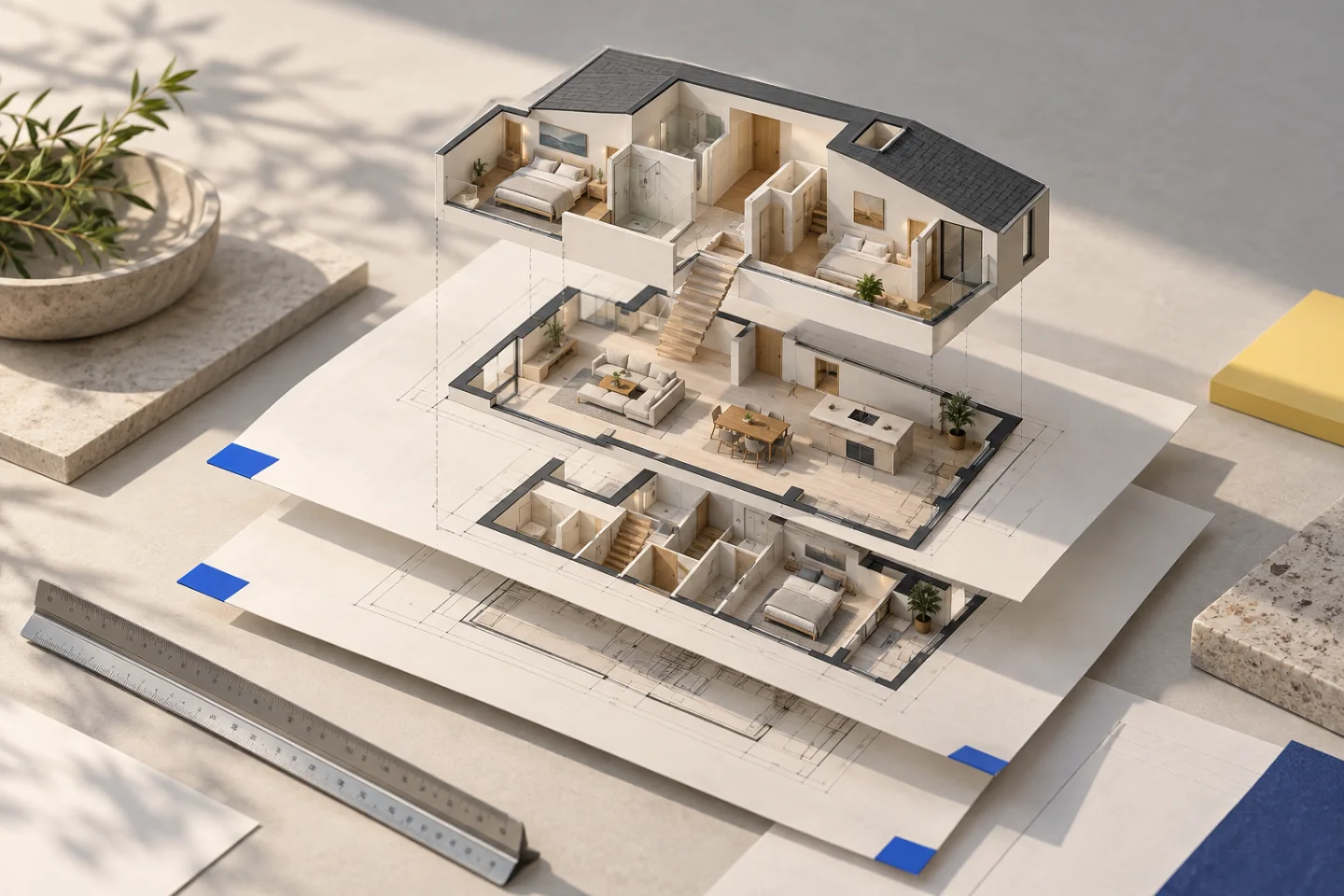
For a multi-storey house, label the order of levels and keep their relationship clear. The top of one page is not necessarily the same direction as the top of another. Look for a shared stair core, structural wall or grid line that lets the floors be checked together. Simply making the page borders match can hide a shift in the building itself.
- Find the current floor-plan revision for every required level.
- Keep page labels and dimensions readable.
- Identify which pages are plans and which provide supporting heights or context.
- Describe changes between the existing and proposed layouts.
Keep dimensions legible when exporting from CAD
If you control the source drawing, export at a scale and sheet size that preserve its smallest useful labels. Preview the PDF after export rather than judging only the CAD workspace. Check thin walls, door gaps and text near the page boundary. A drawing that prints neatly across several sheets may be hard to interpret if those sheets are combined into one tiny overview.
Autodesk documents separate workflows for outputting a single layout and publishing multiple layouts. The practical point for a conversion brief is to make each required floor easy to locate and read. Keep an untouched original, and avoid removing dimension chains merely to reduce file size or produce a tidier marketing image.
Read more: Autodesk: exporting drawing files to PDF
Tell the conversion which information is confirmed
A plan may show wall positions accurately while leaving ceiling heights unspecified. A section might explain the floor levels but not the final kitchen arrangement. Use your brief to distinguish those facts rather than assuming the software can resolve every conflict between sheets. If two pages show different door locations, state which revision should govern the model.
Planwalk’s automated model focuses on an approximate, explorable layout. It does not recreate a complete BIM package or every roof and structural detail from a multi-page document. If a proposed change depends on a structural condition, planning approval or an exact surveyed level, the visualisation should help frame the question for the relevant professional rather than answer it on its own.
Review the model one floor at a time
Compare the exterior outline, internal divisions and openings before adjusting furniture. Check the floor labels and vertical order. In a house, use shared structural features to confirm that the floors remain in the same frame. In an apartment, check that the entrance, kitchen and outdoor access sit on the intended sides of the plan.
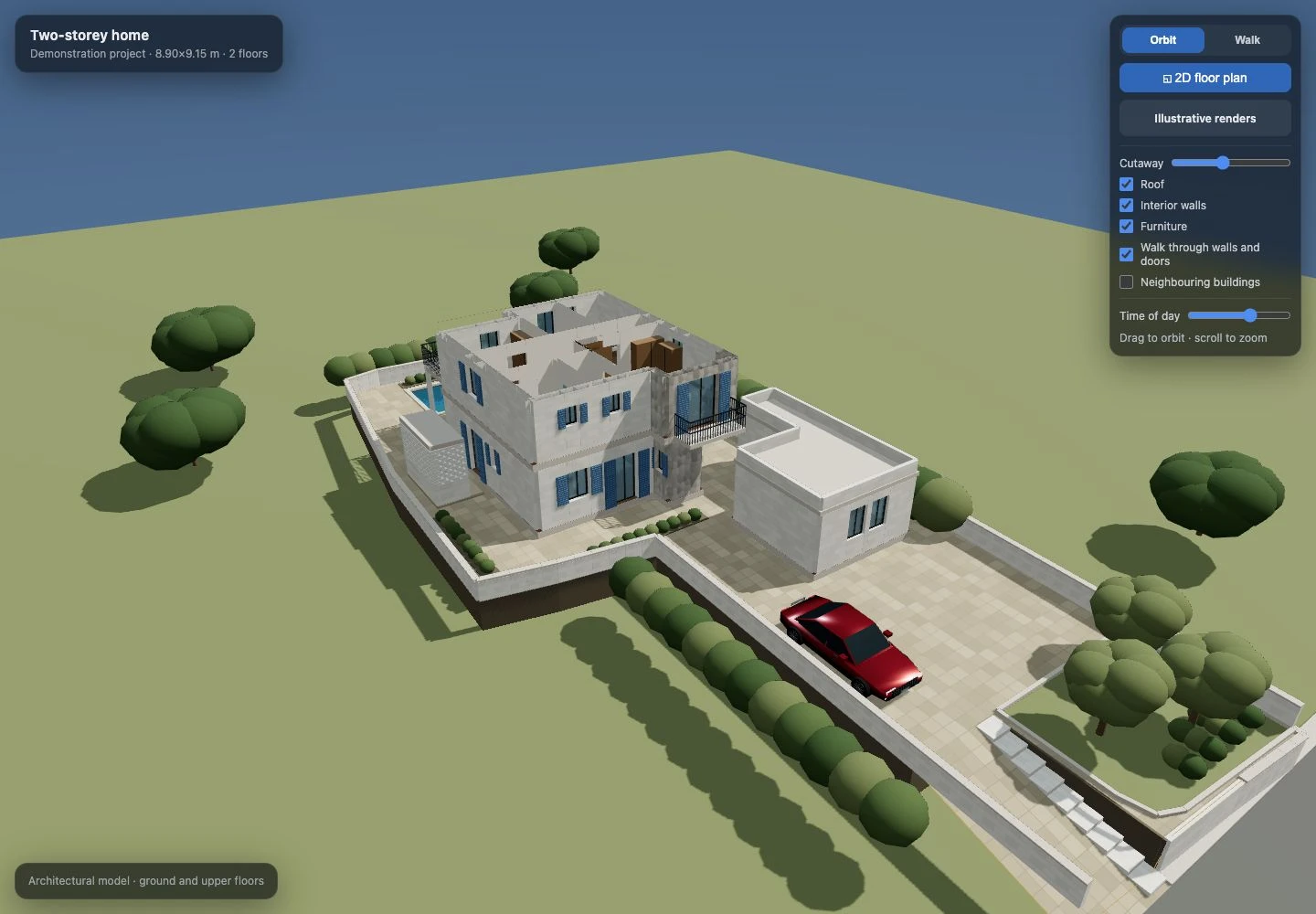
Our two-storey demonstration was developed from CAD source documents and carefully aligned across levels. Its screenshot is useful for understanding the review task, but it is not a statement that any PDF will automatically produce the same custom roof, staircase or surrounding site. Keep source provenance and the detail of a particular demonstration separate from the general upload service.
Troubleshoot common PDF sources
For larger packages, remove irrelevant material from the upload copy only if you understand what it contains. Keep the complete source privately. Planwalk accepts files up to 25 MB each; the automated generation source set should total no more than 40 MB. A smaller, relevant set is easier to review than an entire unrelated construction archive.
| What you see | What it usually means for preparation |
|---|---|
| A blurry plan inside a sharp page border | The embedded drawing image may be low resolution. Find a better source. |
| Many floors on one tiny page | Export or supply each floor at a readable size. |
| Different layouts on different pages | Identify the revision and the intended existing/proposed state. |
| A password-protected file | Provide an accessible copy you are permitted to use. |
| No dimensions on the plan | Supply confirmed measurements rather than relying only on a printed scale label. |
Receive the model and organise your feedback
A Planwalk project costs €20 + VAT and includes three revisions. Five additional revisions cost €5 + VAT. After confirmed payment, the backend creates the model and emails a unique viewing link when it is ready. If the visualisation cannot be completed, all payments for that project, including VAT, are automatically refunded to the original payment method.
Your first revision is most useful when it consolidates the important differences between source and model. Reference the floor and room, and say whether the observation is a source mismatch or a new idea. Once the layout is clear, a later request can focus on furniture proportions, finishes or a proposed alternative.
Questions about this workflow
Do I need a vector PDF?
A readable scan can work too. The important requirements are clear architectural information, usable dimensions and a complete enough plan.
Can I upload several floors?
Yes, provide readable plans and identify their floor order. The current model supports a limited number of floors and is an approximate visualisation, not complete BIM reconstruction.
Should I screenshot the PDF first?
Usually not. Upload the readable PDF directly so you do not lose information in an extra screen-capture step.