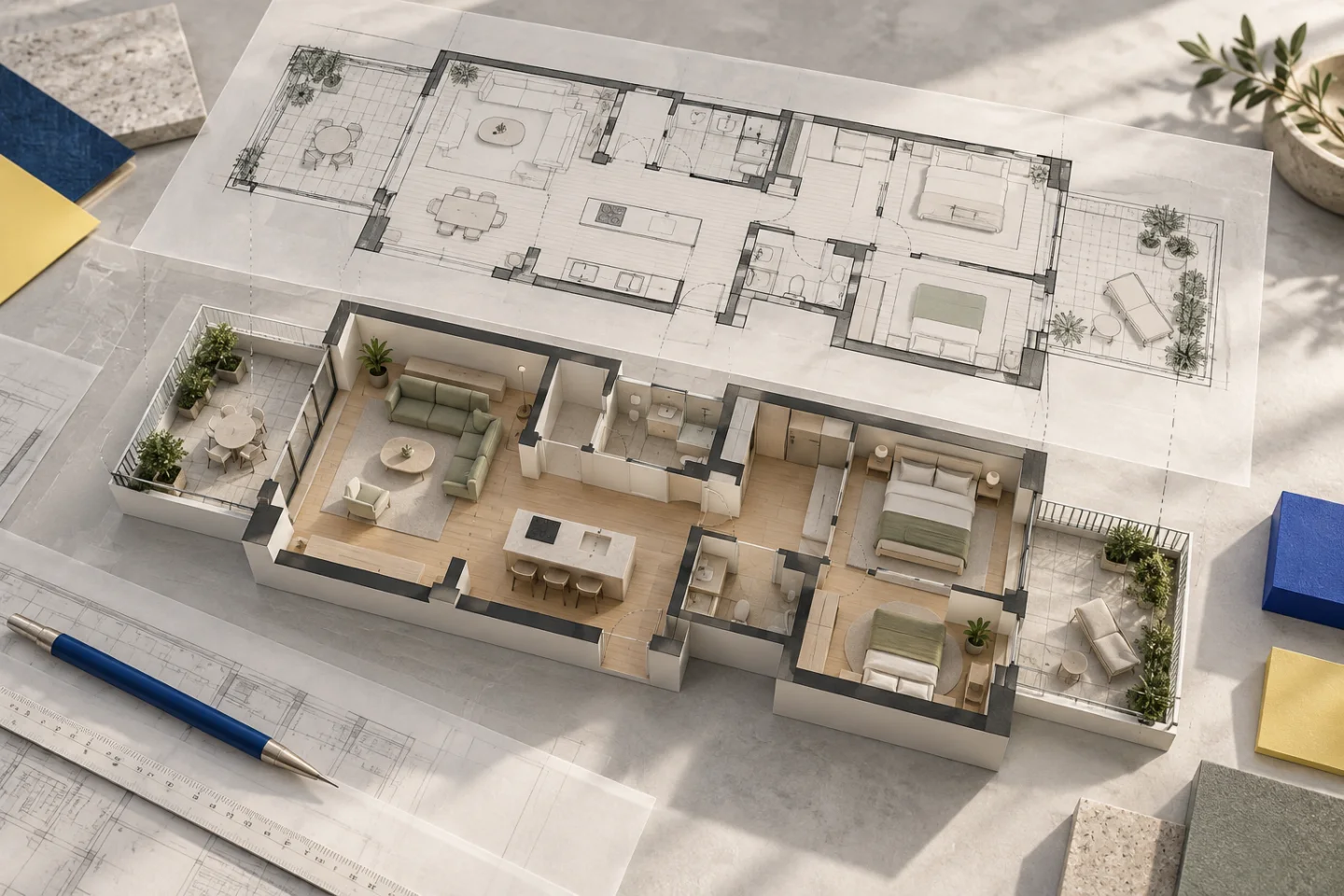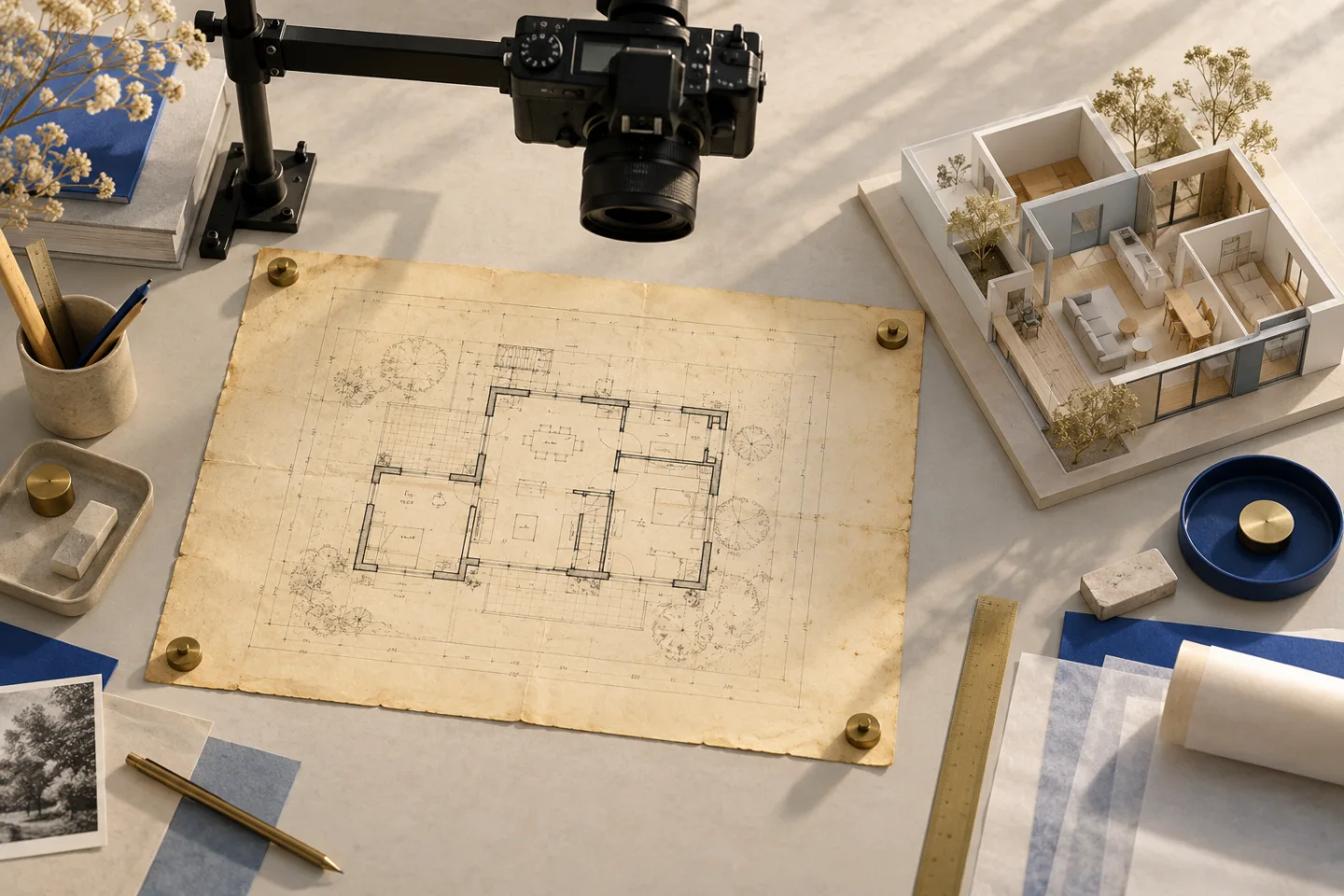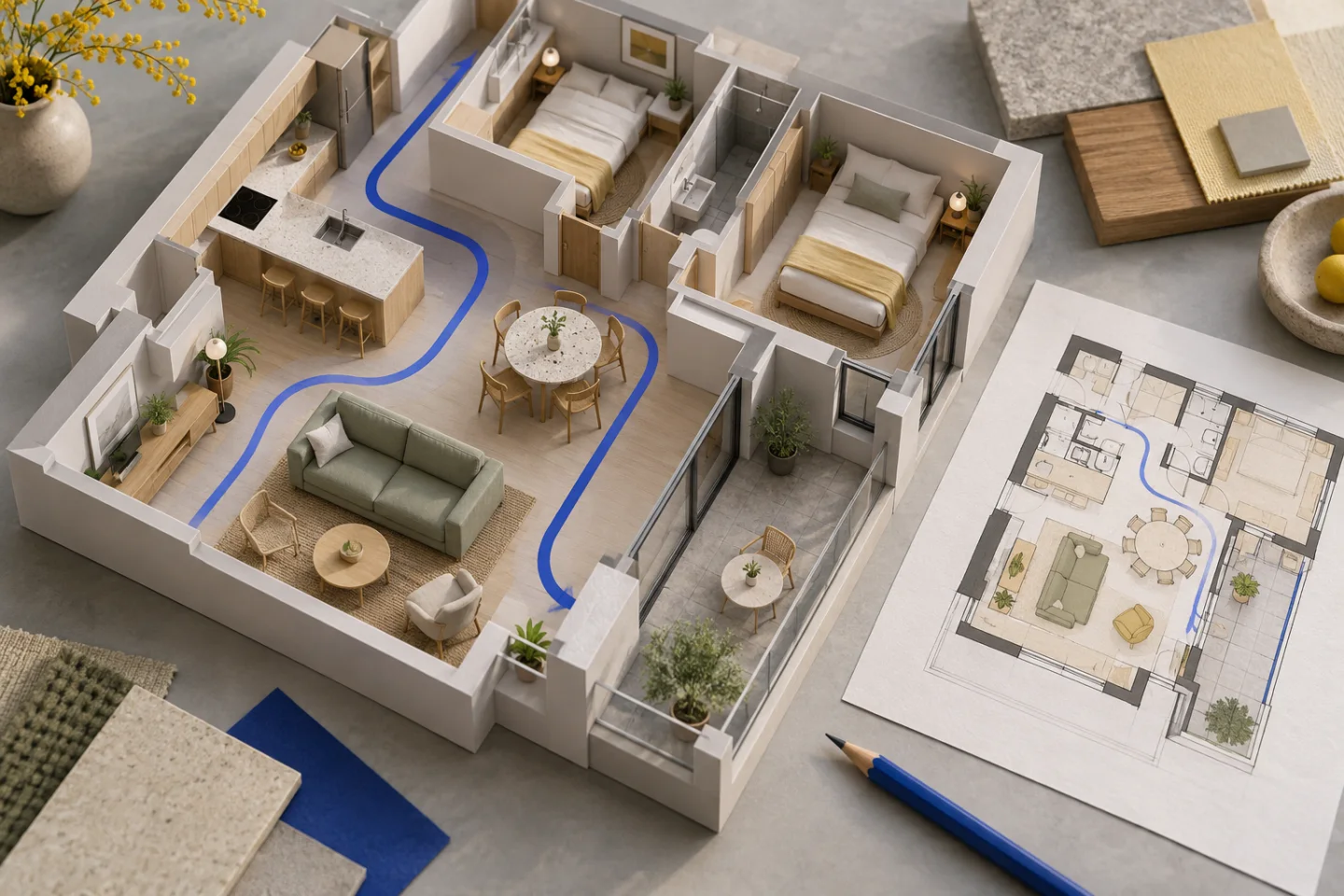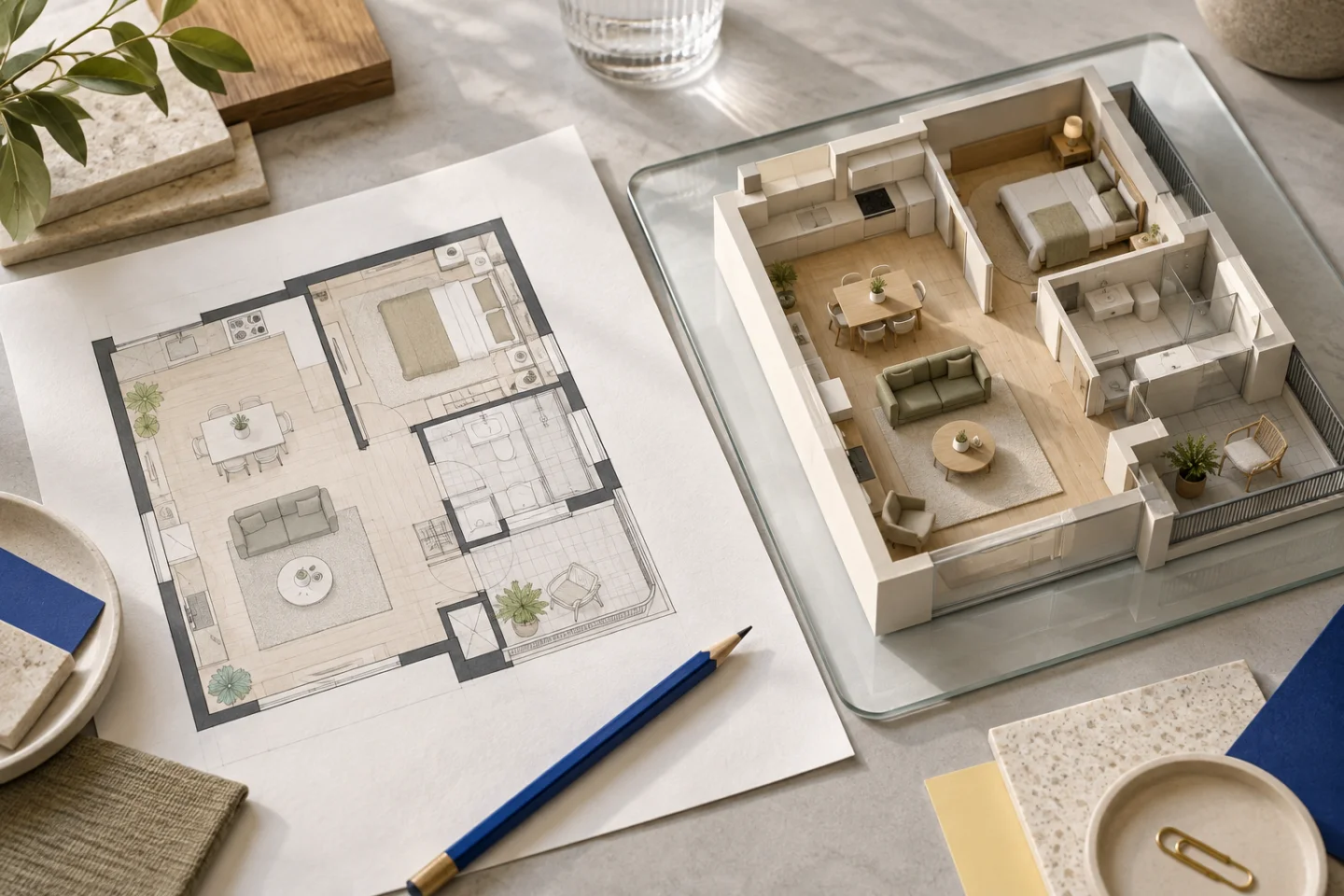
A JPG is a picture of a plan, not measured wall geometry
A JPG floor plan may come from a camera, a scanner, a property brochure or a messaging app. The extension does not tell you whether it is a good source. A sharp photograph with readable dimensions can be more useful than a large image in which the door labels have already been blurred by compression. The first task is to inspect what the pixels actually show.
Unlike a CAD drawing, a JPG does not supply separate wall objects or a reliable model-space unit. The layout has to be interpreted from linework, symbols and measurements. That is why scale, image orientation and source completeness matter. A visually attractive conversion cannot recover information that was never captured in the image.
Find the original image before editing a copy
Use the original camera file or the highest-quality version supplied by the drawing’s author. Images saved from a chat preview or a small listing thumbnail may have fewer useful pixels than the file sent as a document. Check the dimensions and door swings at normal zoom, then zoom closer. Enlarging a blurred image changes its size without restoring the missing strokes.
JPEG compression can soften fine black lines against a white background. Avoid repeated edit-and-save cycles, heavy sharpening or filters that make room labels look clearer while changing their shapes. If you still have the paper drawing, a new square-on photograph is often a better fix. Keep an untouched original so later questions can be checked against the source.
Read more: MDN: image formats and compression
Photograph the whole plan from directly above
Lay the sheet flat and keep the camera parallel to it. Use even light and move shadows, reflections and fingers away from the drawing. Include the full outer footprint, all terrace edges and the dimension chains around the plan. A slightly larger frame is better than cutting off a corner that later determines the size of an entrance or outdoor space.
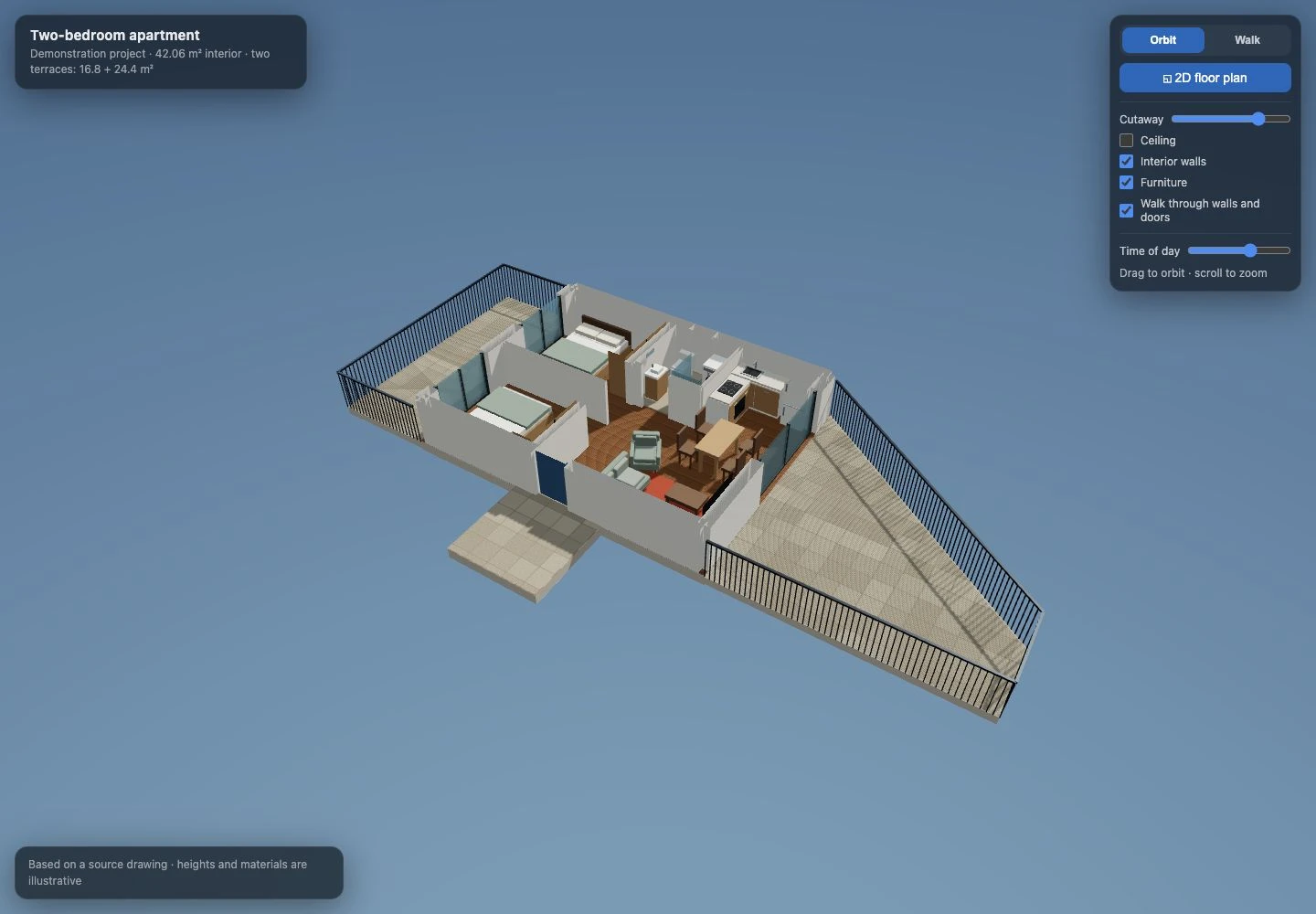
In our apartment demonstration, the photograph preserved useful dimensions and room areas, but the bottom of the sheet was cropped. That did not make the image worthless; it meant some information had to remain explicitly uncertain. The entrance landing added later was a proposal, not a fact recovered from the missing part of the photograph.
Add dimensions and a brief that explain the image
A known exterior width or depth gives the conversion a meaningful reference. Several dimensions in both directions are better because they can reveal a stretched image or an inconsistent interpretation. A room-area label helps describe the plan, but an area alone does not uniquely establish the lengths of its walls. Include confirmed ceiling heights separately if the drawing does not show them.
Tell us which version of the layout you want. A photo may contain handwritten alternatives, crossed-out partitions or furniture symbols that are merely suggestions. Explain those differences in the brief: existing wall, proposed opening, kitchen to remain, sofa position to explore. Avoid unnecessary personal details, names or addresses in the image and description.
- Use the original JPG or JPEG, not a screenshot of its preview.
- Include at least one reliable dimension; two directions are better.
- Identify any cropped edges or handwritten changes.
- Describe missing heights as unknown rather than silently assuming them.
Check the conversion from above before walking inside
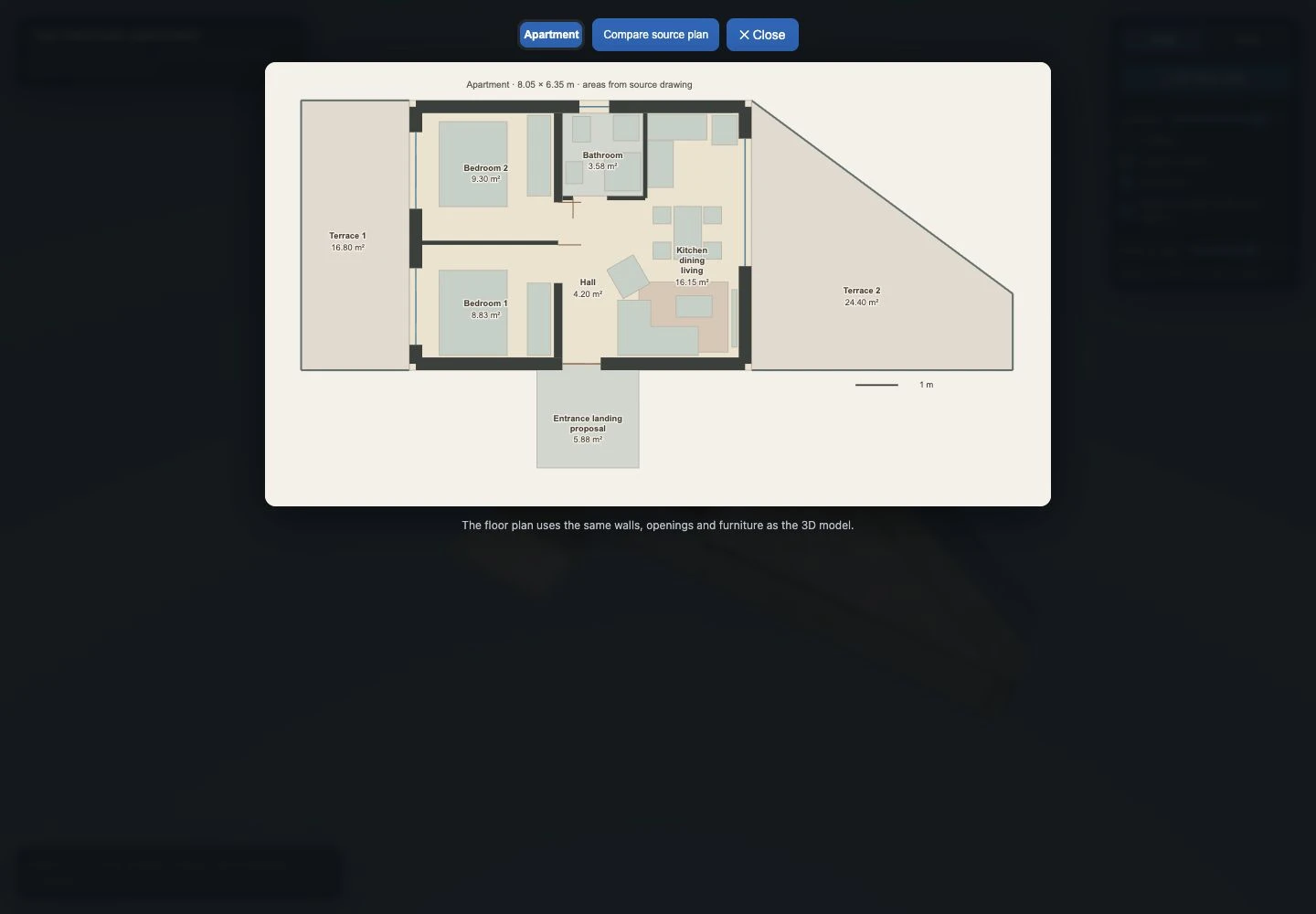
When the model arrives, compare its overhead view with the photograph. Check the number of rooms, the position of the bathroom and the connection between the kitchen and living space. Then check window and door locations. These relationships are more important in the first review than the sofa colour or the exact appearance of the flooring.
Our photographed-apartment example needed several furniture adjustments during product development: the corner sofa orientation, its open end, the armchair position, and the relationship between the dining chairs and kitchen. These are useful review questions for any JPG-to-3D workflow. A table fitting its drawn rectangle is not enough if the chairs overlap the adjacent cabinets.
When a JPG should be replaced instead of converted
Request a better source when dimension digits are unreadable, the plan is strongly tilted, essential walls are outside the frame or several layout versions overlap without explanation. A property-marketing image can be enough to discuss broad room relationships, but it may not support the same confidence as a dimensioned architectural plan. Do not interpret a clean 3D surface as evidence that the underlying source was precise.
If the source cannot support a usable visualisation, Planwalk closes the project and automatically refunds its payments, including VAT. The model is not replaced with an unrelated generic apartment. Better input is still the most effective way to get a useful result; a refund policy cannot restore missing dimensions.
From your image to a shareable viewing link
A Planwalk project costs €20 + VAT and includes three revisions. Five additional revisions cost €5 + VAT. After confirmed payment, the backend creates the model and emails a unique viewing link when it is ready. If the visualisation cannot be completed, all payments for that project, including VAT, are automatically refunded to the original payment method.
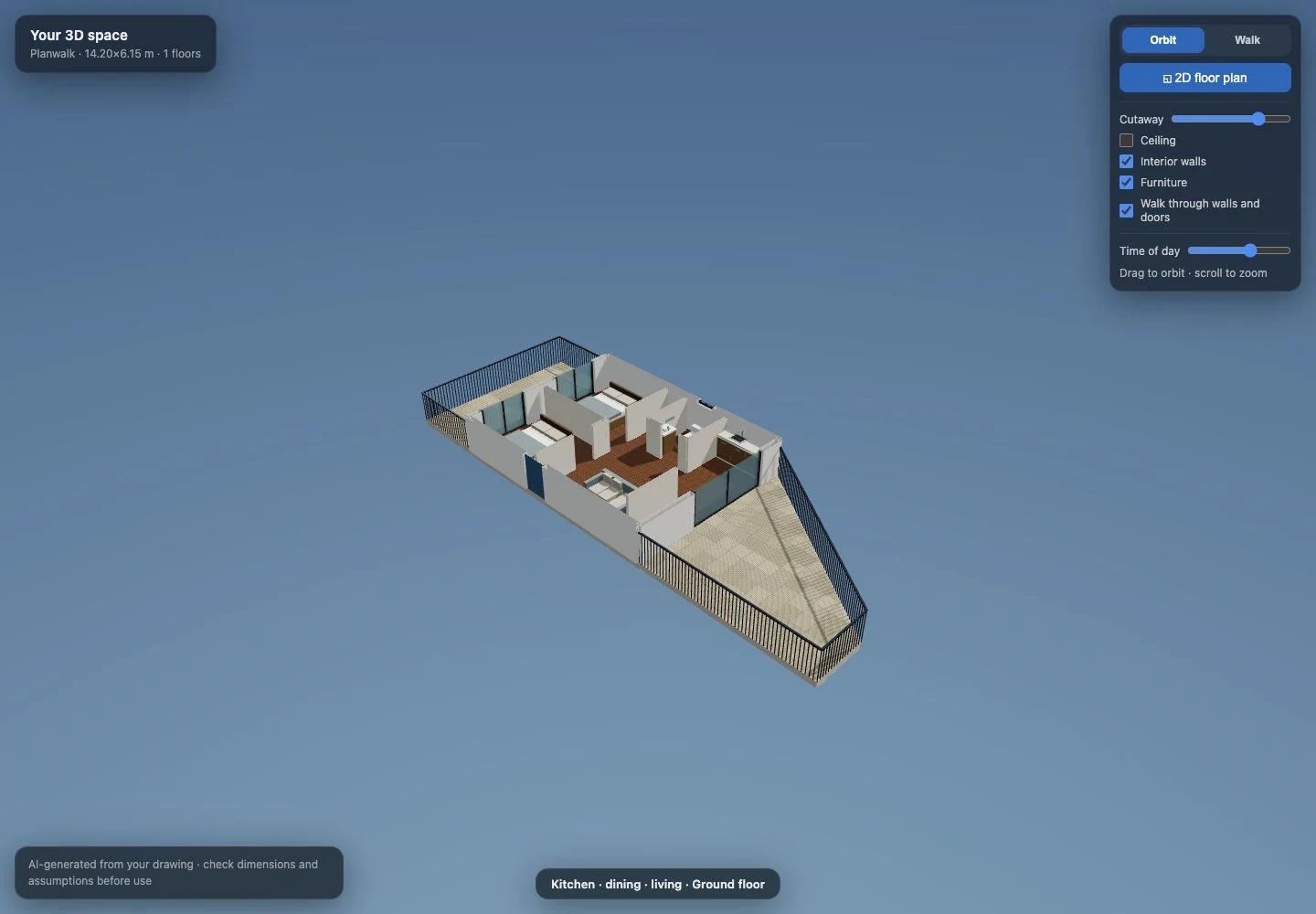
After delivery, you can rotate the model, use the walk-through controls and compare the 2D layout. Anyone with an enabled share link can open the model; you can turn sharing off in your workspace while retaining your own access. Your source drawing is not automatically included in the public viewing link.
Questions about this workflow
Is JPG the same as JPEG for this workflow?
Yes. Both .jpg and .jpeg are accepted image extensions. Source readability matters more than which extension is used.
Can I use a property-listing image?
Possibly, if it is readable and contains enough dimensional information. Check that you have permission to use it and avoid treating marketing proportions as surveyed measurements.
Should I convert a blurry JPG to PNG first?
Changing the format does not restore lost detail. Find the original image or make a clearer scan or photograph.