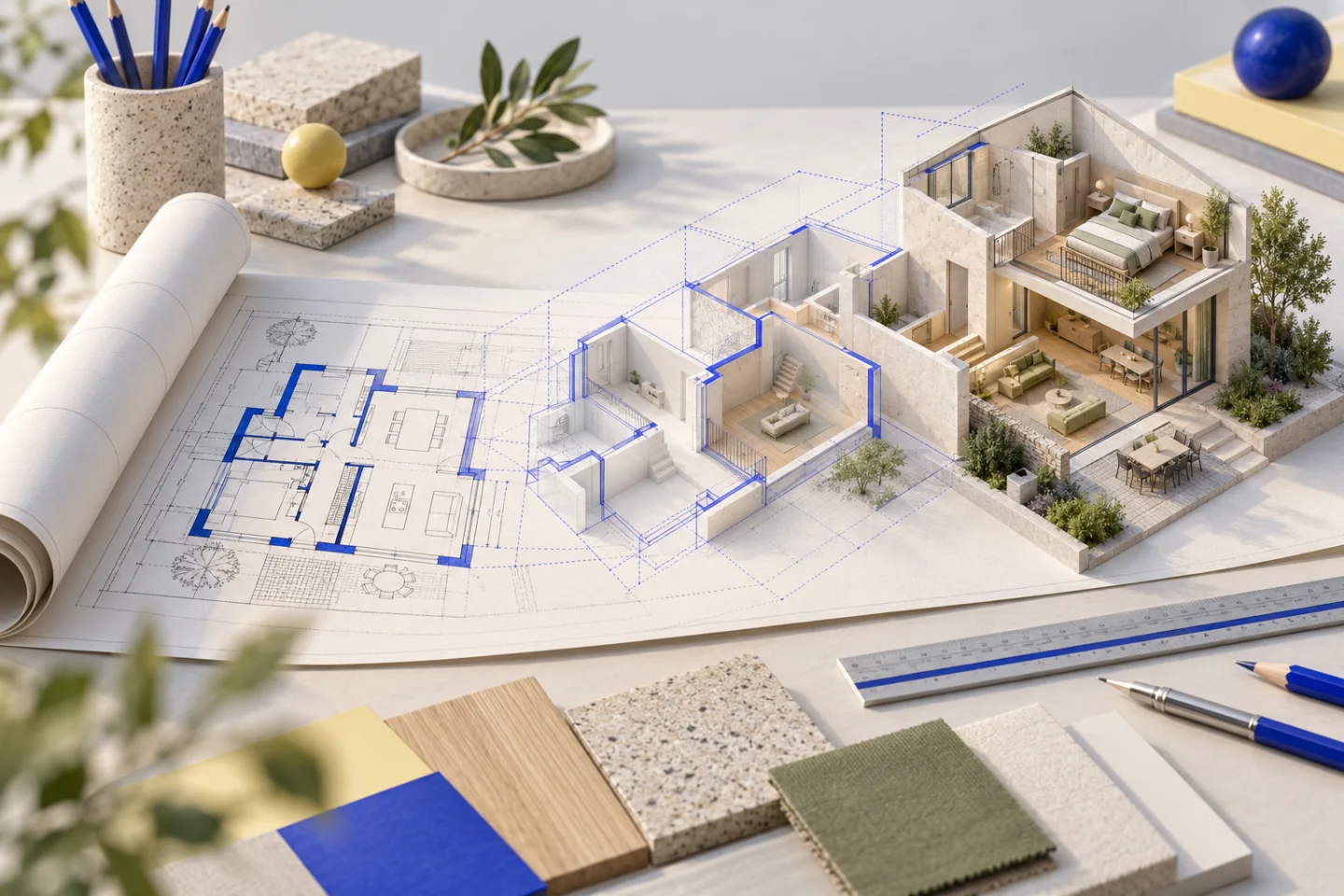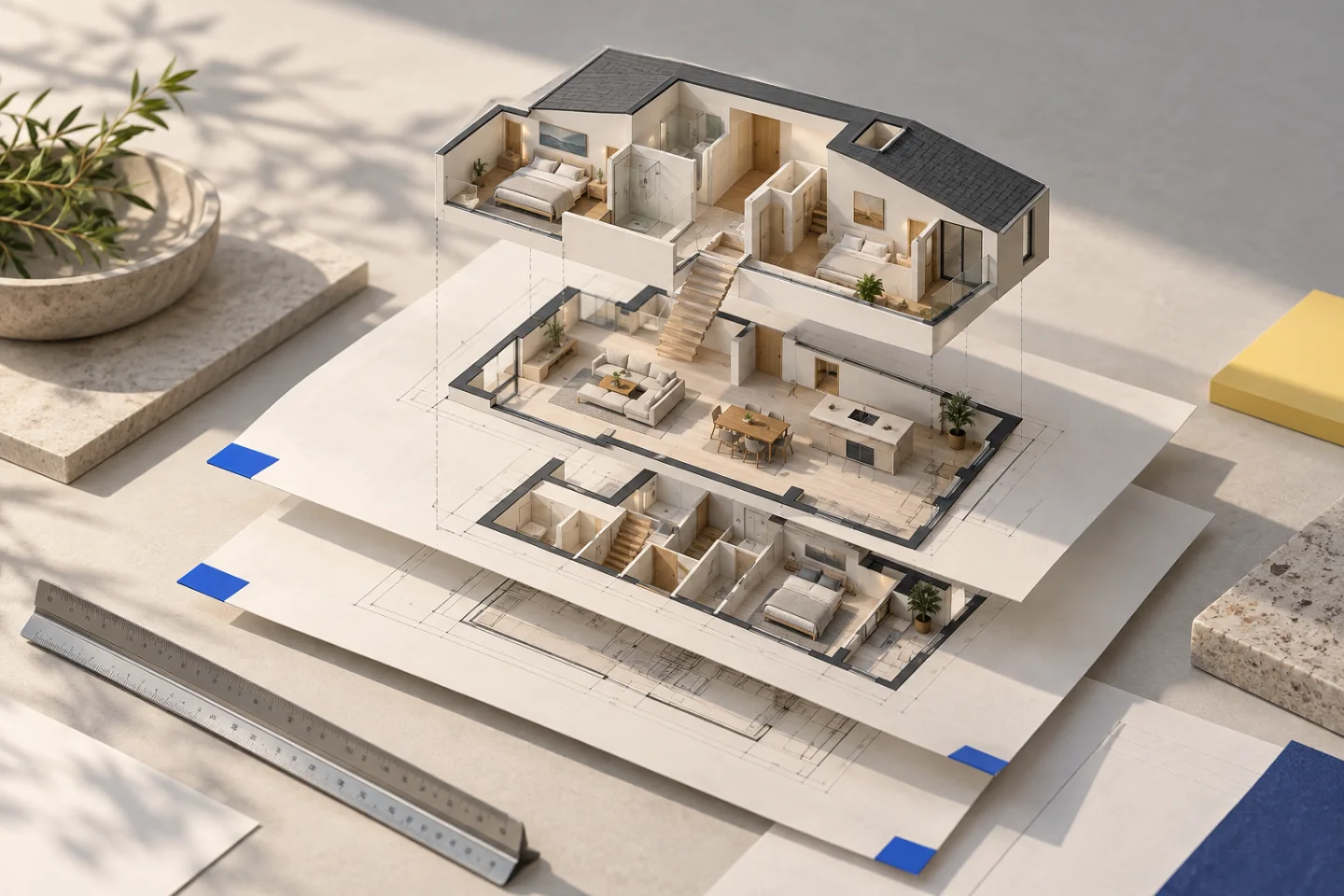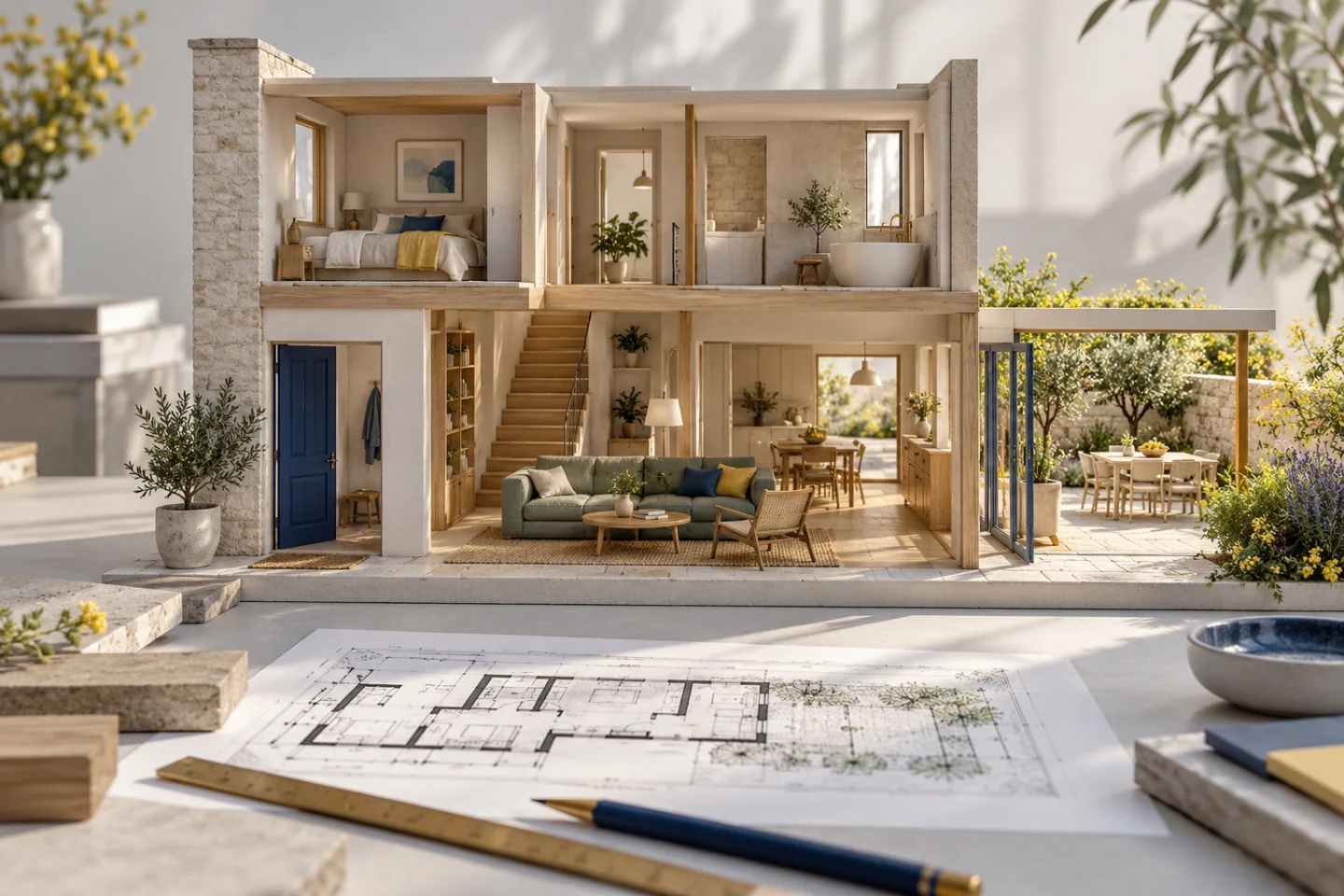
A walkthrough answers a different question from a floor plan
A house floor plan is efficient at showing positions on a page. A 3D walkthrough can make it easier to understand how those positions feel connected: what you see after entering, how the kitchen relates to the terrace and whether the route between rooms is straightforward. Its purpose is to make a layout explorable rather than merely give the drawing a more impressive appearance.
That benefit depends on the source and the model’s accuracy. A fluent camera movement is not evidence that every wall or height was confirmed. Start with the drawing’s actual information and keep assumptions visible. A walkthrough is a discussion tool, not a substitute for a measured survey or a construction package.
Prepare the right plans for every floor
Provide a readable floor plan for each level you want included and explain their order. Include confirmed dimensions and any supporting source that explains height relationships. If different pages show existing and proposed layouts, identify the intended version. A clear upload set is easier to interpret than a collection of unlabeled screenshots from several revisions.
For CAD sources, export a readable PDF or supported image for automatic Planwalk creation. DWG and DXF files can be added as supporting material. For a PDF or image, inspect the complete outer footprint, openings and dimensions before upload. Make sure a terrace, projection or entrance is not missing simply because it sat outside a convenient crop.
Use structural references to check floor alignment
A common mistake is to align each floor by its bounding rectangle rather than a shared part of the building. An upper floor may project beyond the lower one, and different drawing sheets may be cropped differently. Compare a stair core, structural wall or other stable reference across the levels before assuming they line up.
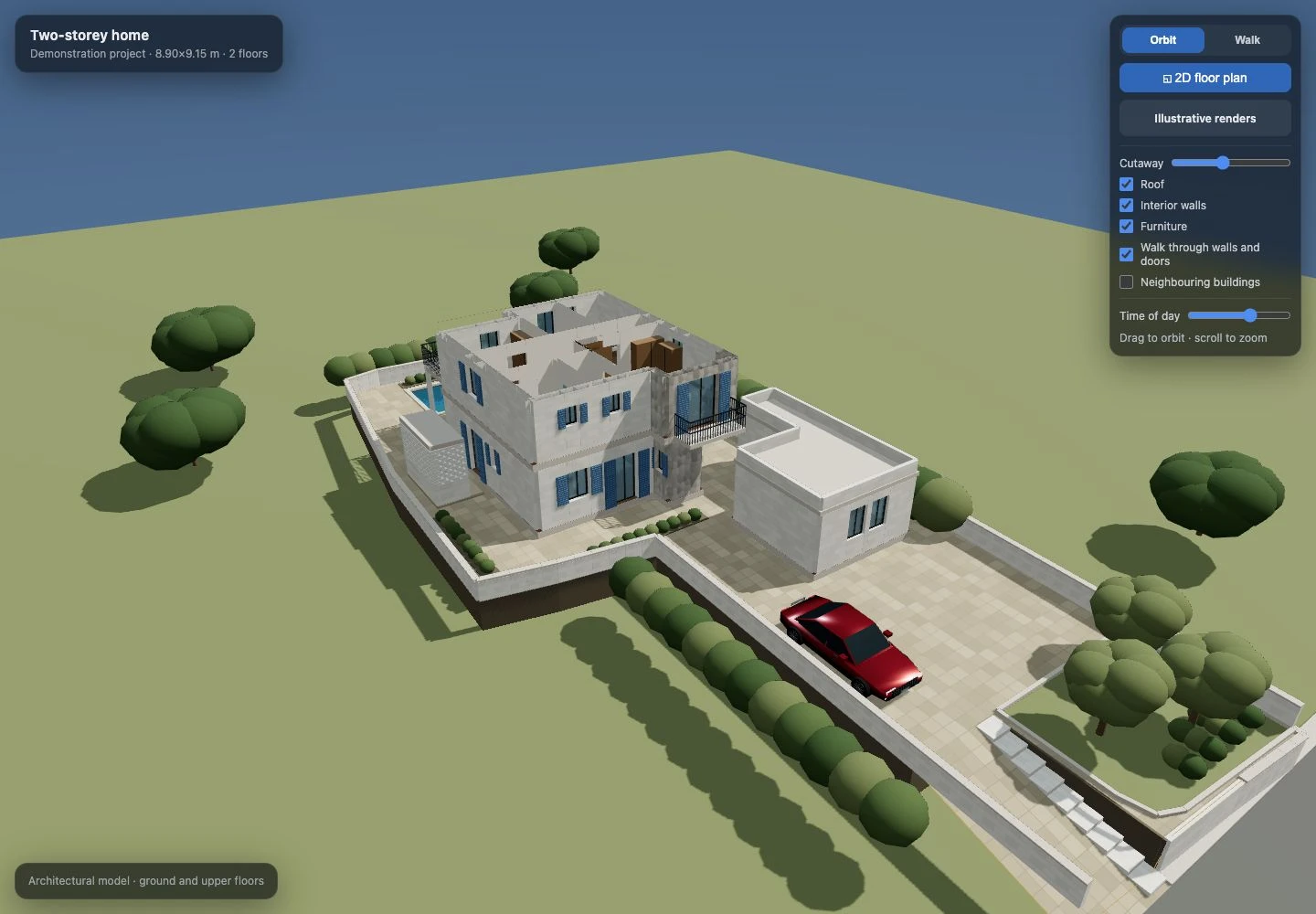
The two-storey demonstration shown below was deliberately developed in a shared drawing frame. That is a specific source-alignment decision, and it is one reason the actual model is more useful as evidence than an unrelated photorealistic illustration. The demo also includes custom site and roof work; its full detail should not be treated as a promise of identical automated reconstruction from every plan.
Inspect the footprint and openings before walking
Begin with Orbit so you can compare the overall building with the source. Check room divisions, entrance position and the relationship to outdoor spaces. Switch to the 2D plan to inspect which walls and openings connect the rooms. If a major relationship is wrong, fix it before reviewing furniture, finishes or the direction of sunlight.
Then check the vertical information you actually supplied. The current automated model focuses on an approximate multi-floor layout with simple ceilings. Complex pitched roofs, bespoke stair geometry and structural conditions are outside that first reconstruction schema. Those details may require additional source work or manual team intervention rather than a confident guess from a plan alone.
Walk a few meaningful routes
Try the route from the entrance to the kitchen, from the living area to the garden, and from each bedroom to the bathroom. Use the floor controls to explore the levels. Look for confusing connections or furniture placed in the route. You can share the link with someone else and ask them to describe the same journey without a separate explanation of the drawing.
The camera can pass through walls and doors by default. That makes exploration convenient but does not simulate a person’s physical clearance. A route still needs to be checked against the visible geometry, confirmed dimensions and the requirements of the people using the building. Camera movement is an aid to understanding, not an accessibility or compliance certificate.
- Entrance to everyday living spaces.
- Kitchen to dining area and outdoor access.
- Bedrooms to bathrooms.
- Connections between floors and shared circulation.
- Furniture positions around each important doorway.
Choose model views and illustrations for their real purpose
Use an interactive model when the question concerns layout or the relationship between spaces. Use an illustrative still image when you want to explore a material palette or atmosphere. A generated render may change details while producing a persuasive scene, so label it and keep a route back to the geometric reference.
Our journal deliberately separates generated editorial images from screenshots of the actual viewer. The former explain a concept; the latter show the product’s real controls and demonstration geometry. Neither should be presented as a photograph of a finished house or as a guarantee that a proposed design can be built.
Receive the link and refine the important decisions
A Planwalk project costs €20 + VAT and includes three revisions. Five additional revisions cost €5 + VAT. After confirmed payment, the backend creates the model and emails a unique viewing link when it is ready. If the visualisation cannot be completed, all payments for that project, including VAT, are automatically refunded to the original payment method.
After delivery, organise your feedback around the drawing: floor alignment and shell first, room connections second, then furniture and finishes. Keep a list of questions that need professional confirmation outside the visualisation. The result is a more useful conversation about the house, even when some parts of the source remain uncertain.
Questions about this workflow
Is a 3D walkthrough the same as a 360-degree photo tour?
No. Planwalk renders an interactive model from interpreted drawing data. It is not a photographic record of an existing property.
Can the first model reconstruct every roof and staircase?
No. The automated schema focuses on approximate floor layouts and simple ceilings. Complex roof and stair geometry may need additional work.
Can someone open the model without installing software?
An enabled viewing link opens the browser model. Source files remain private, and the owner can disable public sharing from the workspace.